How Image Compression Works
Why is a phone photo several megabytes, and how can it shrink by 90 percent without looking worse? Learn lossless and lossy compression, what the quality setting does, and why resizing saves more than anything else.

A photo straight from a modern phone can easily be several megabytes. Post a dozen of them on a web page and it loads slowly; attach a few to an email and it bounces. Image compression shrinks those files, often by 80 or 90 percent, without an obvious drop in quality. Knowing what actually happens to your picture helps you choose the right format, quality and size instead of guessing.
What an image file really contains
A digital image is a grid of pixels, and each pixel needs a color. Stored plainly, a color takes 3 bytes: one each for red, green and blue. A 12-megapixel photo of 4,000 × 3,000 pixels would therefore need 4,000 × 3,000 × 3 = 36,000,000 bytes, about 34.33 MB, before any compression.
Nobody stores photos that way. Every common format compresses the pixel data, and there are two families of methods.
Lossless compression
Lossless methods shrink the file but rebuild every pixel exactly when it is opened. They work by spotting patterns: a run of identical pixels, or rows that repeat a previous row, can be described in fewer bytes than listing every value.
PNG is the best-known lossless format. It is excellent for screenshots, logos, diagrams and anything with sharp edges, large flat areas or text. For photos it is poor: the fine noise and subtle gradients in a real scene leave few exact patterns to exploit, so photo PNGs are often several times larger than a JPEG of the same picture.
Lossy compression
Lossy methods throw away detail that people are unlikely to notice, then compress what is left. JPEG, the long-standing standard for photos, roughly does this:
- It separates brightness from color. Our eyes are much more sensitive to brightness, so color can be stored at lower resolution.
- It splits the image into small blocks of 8 × 8 pixels.
- For each block it describes the pattern as a mix of smooth and fine-grained waves.
- It rounds off the fine-grained parts. This is where the quality setting acts: lower quality means coarser rounding, more data discarded and a smaller file.
- It packs the remaining numbers efficiently.
WebP uses a more modern version of the same idea, predicting each block from its neighbors before encoding the difference. At similar visual quality it usually produces noticeably smaller files than JPEG, and unlike JPEG it can keep transparency.
What too much compression looks like
Push the quality too low and the discarded detail becomes visible:
- Blockiness: the 8 × 8 grid starts to show, especially in skies and skin.
- Ringing: faint halos appear around sharp edges and text.
- Banding: smooth gradients turn into visible steps.
These artifacts are permanent. Saving a JPEG again at a lower quality compounds them, so always compress from the best original you have.
Why resizing matters more than quality
File size grows with the number of pixels, and pixel count grows with the square of the width. Halving the width keeps only a quarter of the pixels. Starting from a 4,000 × 3,000 photo:
- 3,000 px wide: 6.75 megapixels, 56.25% of the original pixels
- 1,920 px wide: 2.76 megapixels, 23.04%
- 1,600 px wide: 1.92 megapixels, 16%
- 800 px wide: 0.48 megapixels, 4%
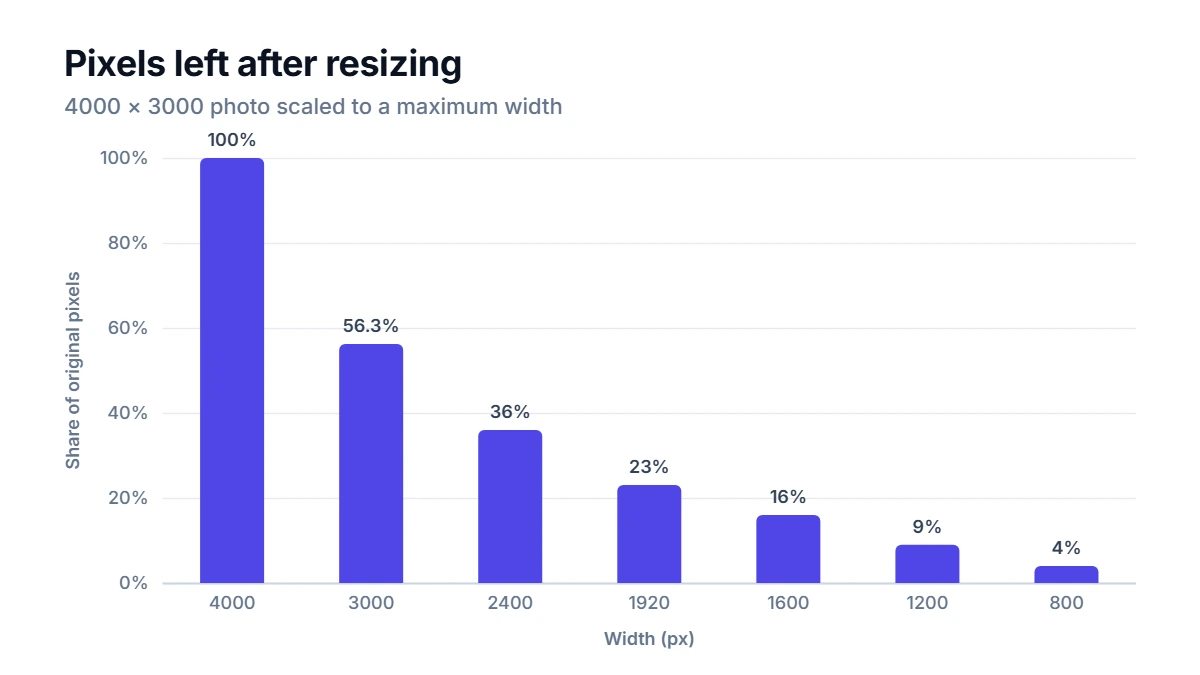
Most laptop and phone screens show web images well under 2,000 pixels wide, so a camera-sized original wastes most of its pixels on a web page. Resizing first and then compressing at a sensible quality nearly always beats squeezing a huge image to a low quality.
Worked example
Suppose your 4,000 × 3,000 photo is a 3,500,000-byte JPEG (3.34 MB). You set a maximum width of 1,600 px, so it is scaled to 1,600 × 1,200, keeping the 4:3 shape, and you save it as WebP at quality 80. If the new file comes out at 420,000 bytes (410.2 KB), you have saved 3,080,000 bytes, or 88%. The exact result depends on the photo: a detailed forest scene needs more bytes than a calm beach with a plain sky.
Choosing a format
- Photos for the web or email: JPEG or WebP. Use WebP when the destination accepts it; JPEG when you need it to open everywhere.
- Screenshots, logos and diagrams: PNG, or WebP if you need a smaller file.
- Transparency: PNG or WebP. JPEG has no transparency, so transparent areas become a solid background.
- Archiving originals: keep the untouched camera file and compress copies.
How to use the compressor
The Image Compressor takes a JPG, PNG or WebP file and re-saves it as JPEG or WebP. Choose the output format, set the quality slider, and optionally enter a maximum width so larger images are scaled down in proportion. It shows the original and compressed sizes and the percentage saved, with a preview so you can check for artifacts before downloading. If the result is larger than the original, which can happen with files that were already well optimized, it lets you keep the original instead. All processing happens in your browser, so your photos are not uploaded.
Good to know
- Start at quality 75 to 85 for photos. Below about 60, artifacts become easier to see; above 90, files grow quickly for little visible gain.
- Zoom to 100% to judge quality. A thumbnail hides almost every flaw.
- Compression can remove metadata. Re-encoding usually drops camera details such as location. That is often a privacy benefit, but keep the original if you need the data.
- Do not upscale. Making a small image bigger adds pixels but no detail, and the file gets larger.
FAQ
Does compressing an image reduce its resolution?
Not by itself. Quality settings change how much detail is kept within the same pixel grid. Only resizing changes the resolution. Many workflows do both: resize to the size you need, then compress.
Why does the same quality setting give different file sizes?
The quality number controls how coarsely detail is rounded, not the final size. A busy, detailed photo still has more information left after rounding than a simple one, so it produces a bigger file at the same setting.
Is WebP supported everywhere?
All major current browsers display WebP. Some older desktop software, printing services and upload forms still expect JPEG or PNG, so check where the image is going before you choose.
Can I undo lossy compression?
No. The discarded detail is gone for good. That is why it pays to keep your original files and compress copies, rather than overwriting the only version you have.
